Create your first job
Create a role, configure the hiring process, and choose how to receive applicants.
Create a role, set up its hiring process, and choose where candidates can apply.
Before you start
You need permission to add jobs and available plan capacity. Prepare the description, location, experience range, qualifications, and required skills. Staffing-agency accounts also need the customer.
1. Open Add Job
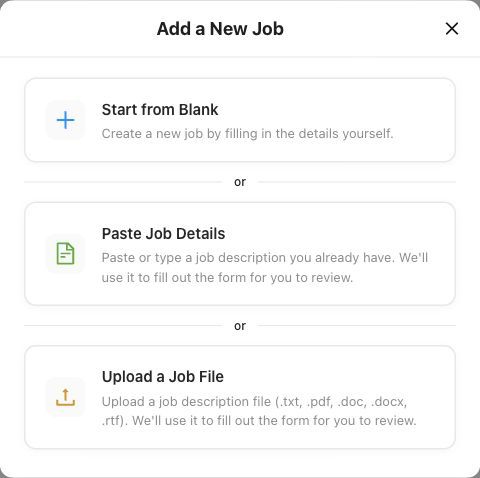
Open Jobs and click Add Job. The job form may open directly. If Add a New Job appears, choose:
Start from Blank to fill in the form yourself.
Paste Job Details to start from an existing description.
Upload a Job File to start from a supported job-description document.
Pasting or uploading pre-fills details for your review. Check the values before creating the job.
2. Review Job Details
Complete the highlighted required fields, including the title, job code, job type, industry, employer type, job function, qualifications, experience, location, description, and at least one skill marked Required. Write at least 100 words in Job Description; check the word count before saving.
Select This is a remote job for a remote role, while still completing the location fields required by the form. Review the optional department and salary details.
See Create a job: required fields and next steps for the field-by-field reference.
3. Save the role
Click Create job when the role is ready to become active. Career-page and job-board publishing are enabled by default; review Get More Applicants immediately after creation to disable unwanted channels. Use Save draft for an unfinished role.
If approval is required, review the approver group and submit the request. The job stays pending until all approvals are complete.
4. Configure the hiring process
Use the sections offered in the editor to review:
Hiring Team: the people working on this role.
Job Application: application settings and selected screening questions.
Hiring Pipelines: the stages candidates will use.
Interview Scorecard: the assessment interviewers will submit.
Benchmark Resume and Automation, when relevant and available to your workspace.
Use Save & Continue, or Save & Finish on the final section, and wait for confirmation.
5. Choose how to receive applicants
Open Get More Applicants to review distribution. Turn off Enable job board publishing and Show on Career Page if the role should not appear in those channels, or select the channels you want. Review channel requirements and approval state, then click Save & Finish. These controls do not disable the direct job link. Change the job status to Paused to stop public applications.
Creating the job does not guarantee that every external board has published it. Check the intended public job or career-page link before sharing it with candidates.
You are ready when
Check the saved job, approval and publication status, application form, and hiring stages. You can then add candidates from the job’s candidate list.
If you get stuck
Correct highlighted fields. If an action is unavailable, ask an administrator to check permissions, job status, and plan capacity. Use the approval guide below for sign-off issues.
Next steps
Example: choose a starting point
Choose a starting point when these options are available, then review the job details before saving.
Was this helpful?
Still need help? Ask the team