Set up Indeed Apply in CVViZ
Learn how to enable Indeed Apply, verify your career page, publish selected jobs to Indeed, and receive applications in CVViZ.
Enable Indeed Apply, publish eligible jobs to Indeed, and receive applications directly in CVViZ.
What the integration does
Indeed Apply lets job seekers apply to your CVViZ jobs directly on Indeed. Applications are delivered to the matching job in CVViZ, together with the candidate's resume and supported screening-question responses.
CVViZ also sends supported application-status updates to Indeed as you move applicants through your hiring process.
Before you begin
Make sure that:
You are signed in as the Super Admin of your CVViZ workspace.
Your CVViZ subscription is active.
Your CVViZ career page has a company name and career-page path, is published, and can be opened without signing in.
Your company website links to or embeds the CVViZ career page.
Jobs you want to publish are approved, have In Progress status, appear on your career page, and contain a complete title, description, and location.
If you start from Indeed's Integrations Hub, sign in to your Indeed Employer account and select CVViZ. You do not need to enter your Indeed password or API credentials in CVViZ.
1. Publish and integrate your CVViZ career page
In CVViZ, open Settings → Career Page.
Add your company name and career-page path.
Complete the career-page settings and select Publish career page.
Open the Integrate with your website section.
Add the career-page link or embed code to a public page on your company website.
Open that page in a private browser window to confirm that it is publicly accessible.
2. Enable Indeed Apply for your workspace
Open Settings → Integrations.
Scroll to Job boards.
On the Indeed card, turn on Indeed Apply.
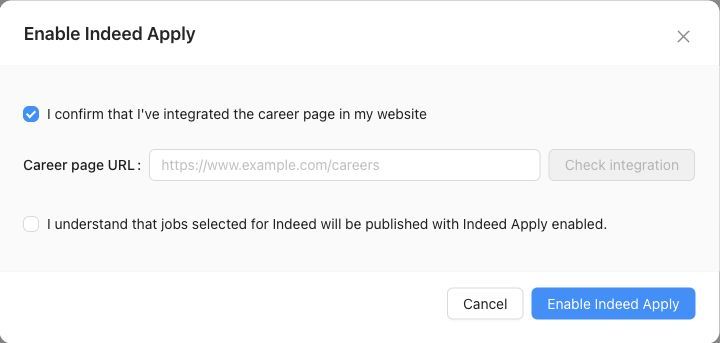
Confirm that you have integrated the CVViZ career page into your website.
Enter the public page on your company website where the CVViZ career page is linked or embedded.
Select Check integration.
After CVViZ confirms the integration, accept the acknowledgement about publishing jobs to Indeed.
Select Enable Indeed Apply.
The switch displays Enabled when activation succeeds.
Screenshot 1: Indeed card under Settings → Integrations → Job boards.

Screenshot 2: Enable Indeed Apply window showing the career-page confirmation and publishing acknowledgement.
3. Publish a job to Indeed
Enabling Indeed Apply makes Indeed available as a publishing destination. You still control which jobs are sent to Indeed.
For each job you want to publish:
Open the job in CVViZ and select Edit.
Open the Job Boards tab.
Confirm that the job is approved and has In Progress status. Draft, unapproved, closed, and archived jobs cannot be published.
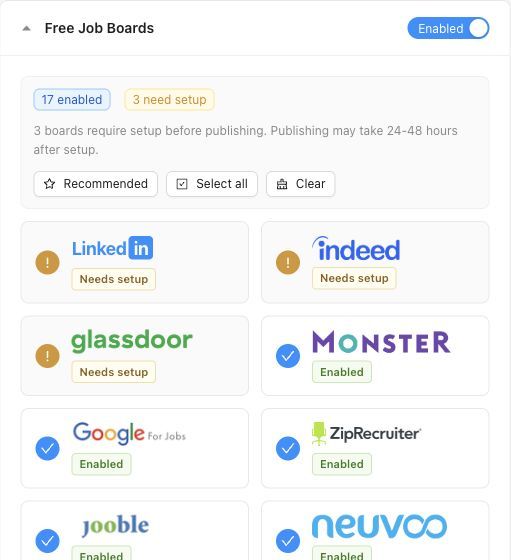
The Indeed tile should show Available. Select it so its status changes to Enabled.
Save the job.
Screenshot 3: The Indeed tile under Free Job Boards. If it shows Needs setup, enable Indeed Apply under Settings → Integrations first.
Indeed controls the final review and publication of jobs. Allow approximately 24–48 hours for an eligible job to appear. Review or policy checks can take longer.
What happens after Indeed Apply is enabled
Eligible jobs selected for Indeed are included in the CVViZ job feed sent to Indeed.
Indeed reviews and indexes the job according to its policies.
Job seekers can complete the application on Indeed using the Indeed Apply experience.
The candidate appears under the matching job in CVViZ with Indeed as the source.
The candidate's resume and supported screening answers are saved with the CVViZ application.
Supported hiring-stage changes in CVViZ are sent to Indeed.
Job edits are reflected after Indeed processes the updated feed.
Closing a job or disabling Indeed for that job removes it from the CVViZ feed. Removal from Indeed may not be immediate.
Disable Indeed Apply
To disable Indeed Apply for the whole workspace:
Open Settings → Integrations.
Scroll to Job boards.
Turn off Indeed Apply on the Indeed card.
To stop publishing only one job, open that job's Job Boards tab, deselect Indeed, and save. Other eligible jobs remain unaffected.
Re-enable Indeed Apply after opting out
Return to Settings → Integrations → Job boards.
Turn on Indeed Apply.
Repeat the career-page integration check and accept the acknowledgements.
Open the Job Boards tab for each job that should be published.
Confirm that Indeed is selected and save.
Previously selected, still-eligible jobs can resume publication after the workspace integration is enabled again. Review each job's status and Indeed selection if you do not want it republished.
Troubleshooting
I cannot see the Job boards section
Only the workspace Super Admin can manage the Indeed integration. Ask your Super Admin to complete the activation.
CVViZ asks me to publish and integrate the career page
Open Settings → Career Page and confirm that the career page has a company name and path and is published. Then link or embed it on your public company website.
The career-page integration check fails
Enter the complete public URL, including
https://.Make sure the page is not behind a login, firewall, or maintenance screen.
Confirm that the page contains the CVViZ career-page link or embed.
Retry the check after publishing website changes.
Indeed shows “Needs setup” on a job
Enable Indeed Apply under Settings → Integrations → Job boards, then return to the job.
My job is not visible on Indeed
Confirm that:
Indeed Apply is enabled for the workspace.
The job is approved, In Progress, and not a draft.
The job is published on the CVViZ career page.
Indeed is enabled on the job's Job Boards tab.
The title, description, and location are complete.
At least 24–48 hours have passed since publication.
Indeed makes the final decision about whether a job is eligible for display.
Applications are not arriving in CVViZ
Contact CVViZ Support and include the CVViZ job ID, job title, and the approximate application time. Do not send candidate passwords or other credentials.
Frequently asked questions
Does enabling the workspace integration automatically publish every job?
No. The workspace integration must be enabled, and Indeed must also be selected for each job you want to publish.
Do recruiters need to copy applications from Indeed into CVViZ?
No. Successfully delivered Indeed Apply applications are added directly to the matching job in CVViZ.
Are screening questions included?
Supported screening-question types attached to the CVViZ job can be shown during the Indeed Apply process. Unsupported formats might not be sent to Indeed.
Can candidates apply on mobile devices?
Yes. Indeed Apply is designed to support mobile applications.
Do I need to share my Indeed password with CVViZ?
No. CVViZ does not ask for your Indeed password during this activation flow.
Who should I contact for help?
For CVViZ configuration or application-delivery questions, contact CVViZ Support. For job visibility or Indeed policy decisions, contact Indeed Employer Support.
Still need help? Ask the team